Starting the CoraDB Service
Configure environment variables and language, and then start the CoraDB service. For more information on configuring environment variables and language, see CoraDB Services.
Shell Command
The following shell command can be used to start the CoraDB service and the demodb included in the installation package.
% coradb service start

@ coradb master start
++ coradb master start: success

@ coradb broker start
++ coradb broker start: success

@ coradb manager server start
++ coradb manager server start: success

% coradb server start demodb

@ coradb server start: demodb

This may take a long time depending on the amount of recovery works to do.

CoraDB 1.0

++ coradb server start: success

@ coradb server status

Server demodb (rel 11.0, pid 31322)
CoraDBService or CoraDB Service Tray
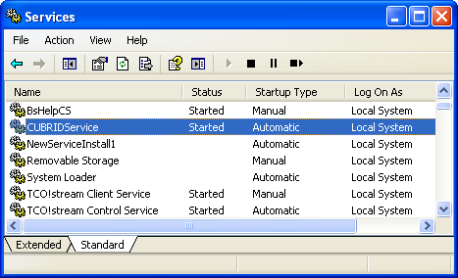
On the Windows environment, you can start or stop a service as follows:
Go to [Control Panel] > [Performance and Maintenance] > [Administrator Tools] > [Services] and select the CoraDBService to start or stop the service.
In the system tray, right-click the CoraDB Service Tray. To start CoraDB, select [Service Start]; to stop it, select [Service Stop].
Selecting [Service Start] or [Service Stop] menu would be like executing coradb service start or coradb service stop in a command prompt; this command runs or stops the processes configured in service parameters of coradb.conf.
If you click [Exit] while CoraDB is running, all the services and process in the server stop.
Note
An administrator level (SYSTEM) authorization is required to start/stop CoraDB processes through the CoraDB Service tray; a login level user authorization is required to start/stop them with shell commands. If you cannot control the CoraDB processes on the Windows Vista or later version environment, select [Execute as an administrator (A)] in the [Start] > [All Programs] > [Accessories] > [Command Prompt]) or execute it by using the CoraDB Service Tray. When all processes of CoraDB Server stops, an icon on the CoraDB Service tray turns out gray.
Creating Databases
You can create databases by using the coradb createdb utility and execute it where database volumes and log volumes are located. If you do not specify additional options such as –db-volume-size or –log-volume-size, 1.5 GB volume files are created by default (data volume is set to 512 MB, active log is set to 512 MB, and background archive log is set to 512 MB).
% cd testdb
% coradb createdb testdb en_US
% ls -l

-rw------- 1 coradb dbms 536870912 Jan 11 15:04 testdb
-rw------- 1 coradb dbms 536870912 Jan 11 15:04 testdb_lgar_t
-rw------- 1 coradb dbms 536870912 Jan 11 15:04 testdb_lgat
-rw------- 1 coradb dbms       176 Jan 11 15:04 testdb_lginf
-rw------- 1 coradb dbms       183 Jan 11 15:04 testdb_vinf
In the above, testdb represents a data volume file, testdb_lgar_t represents a background archive log file, testdb_lgat represents an active log file, testdb_lginf represents a log information file, and testdb_vinf represents a volume information file.
For details on volumes, see Database Volume Structure . For details on creating volumes, see createdb. It is recommended to classify and add volumes based on purpose by using the coradb addvoldb utility. For details, see addvoldb.
Starting Database
You can start a database process by using the coradb server utility.
% coradb server start testdb
To have testdb started upon startup of the CoraDB service (coradb service start), configure testdb in the server parameter of the coradb.conf file.
% vi coradb.conf

[service]

service=server,broker,manager
server=testdb

...